Add PDFs
PDFs can be added to item content components (within the stem, question, passage, etc.). They cannot be added to the response options or anywhere in the response area.
 You can upload new PDFs when editing the item. Uploaded PDFs will also be added to the project's asset library and can be added to other items in the project.
- You can also attach PDFs to comments or metadata types that allow text entry.
- You can preview or download PDFs that are attached to an item.
Add a PDF
Add a PDF to the item's stem or passage area (inside a 'content component' with a text box).
|
|
- Click inside the desired content component, such as the Stem or Passage.
- In the editing toolbar, go to Insert > Assets.
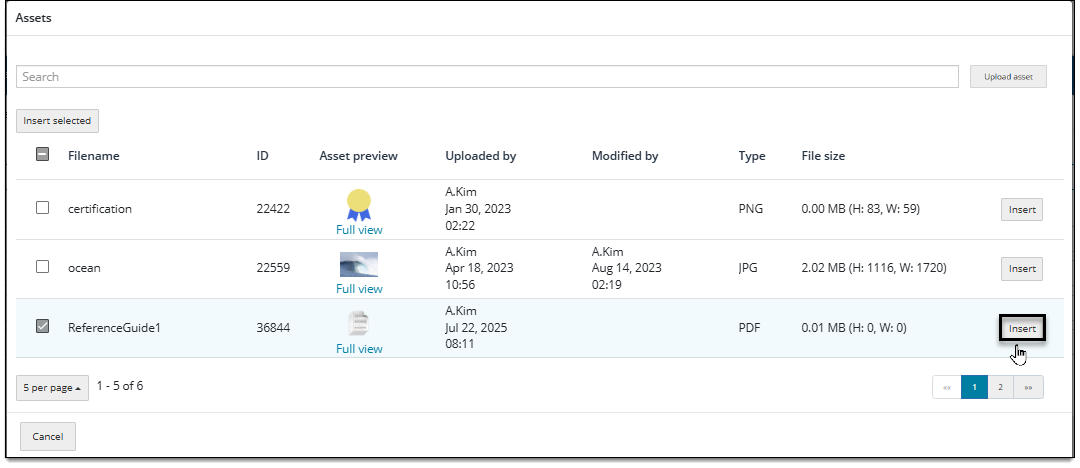
- In the Assets pop-up, you can choose a PDF file from the list or upload a new file.
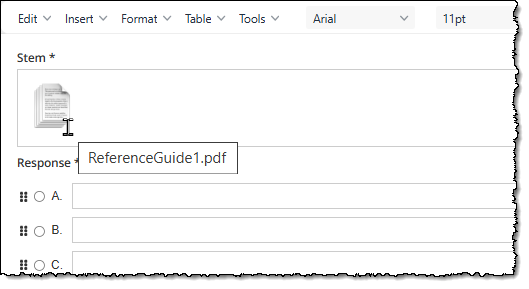
- When editing the item, you'll only see an icon placeholder for the PDF. Hover over the icon to view the PDF name. You can also right-click the PDF icon and preview it, or click More > Preview at the bottom of hte page to preview the entire item.
Choose a PDF from the Assets list
- In the Assets pop-up, find the PDF in the list or type the file name in the Search box. See PDF properties below for a description of each column in the file list.
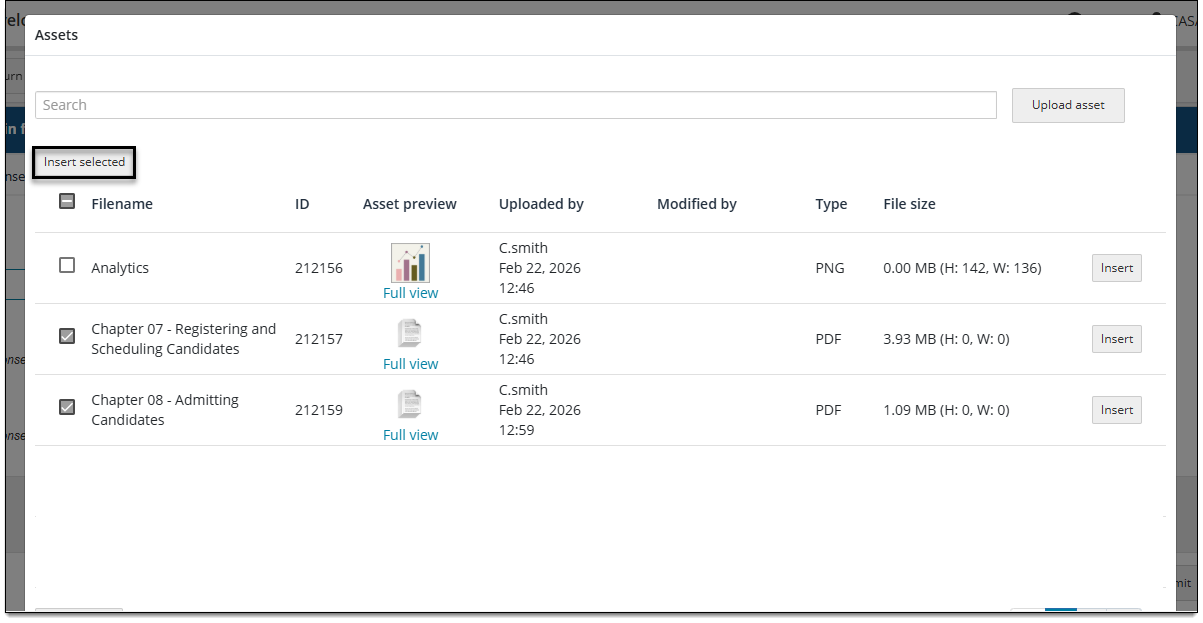
- Select the checkbox next to the PDF name and click Insert. Or select multiple assets and click Insert selected.
- The PDF is added to the item. Click Save in the lower-right corner of the page.
- The project manager can configure media assets to be displayed as an exhibit, in which case the media file will be added as an exhibit instead of a media asset.
Upload a new PDF
- Click Upload asset in the upper-right corner of the Assets pop-up.
- Choose a PDF stored on your computer. The file is added to the Assets list.
- Select the checkbox next to the PDF name and click Insert. Or select additional assets if needed and click Insert selected.
- The PDF is added to the item.
- The PDF is also added to the project's asset library and can be added to other items in the project.
- Click Save in the lower-right corner of the page.
PDF properties
The following data is provided for each image:
- File name: the name of the PDF when it was uploaded to the item bank, not including the file type extension (e.g., "Document1" not "Document1.png".
- ID: the PDF asset ID; allows project managers and authors to search for the asset.
- Asset preview: a generic PDF thumbnail is shown. Click Full View beneath the thumbnail to view the PDF in a separate browser tab.
- Uploaded by: the name of the person who uploaded the PDF to the project item bank.
- Modified by: the name of the person who modified the PDF (in the project item bank settings, not within a question or exhibit).
- Type: the file format/type (PDF).
- File size: the size of the PDF in MB.
Set PDF attributes
The Material Copy PDF Text setting enables or disables 'open book' functionality, which allows candidates to copy and paste text from a PDF document into their responses during exam delivery.
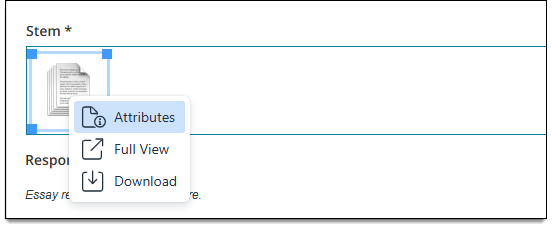
- Right-click the PDF icon in the item and select Attributes.
- Select an option from the Material Copy PDF Text drop-down:
- Not set: this is selected by default until a user selects a different option. ('Open book' is not enabled unless Enable is selected and saved.)
- Enable: Select this option to enable the 'open book' functionality that allows candidates to copy and paste text from a PDF into their responses during exam delivery.
- Disable: Select this option to disable 'open book' if it was previously enabled and should now be disabled.
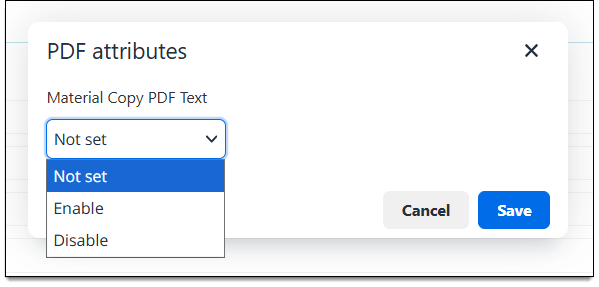
- Click Save.
Preview a PDF
- Right-click the PDF icon in the item and select Full view.
- The full PDF opens in a new browser tab or window in your browser.
Download a PDF
- Right-click the PDF icon in the item and select Download.
- The PDF file is sent to your Downloads folder.
Remove a PDF
- Click the PDF icon to select it.
- Press the Delete or Backspace button on your keyboard.
- You cannot 'replace' a PDF that has already been added to the item. You must delete the existing PDF and add a new one.